> ## Documentation Index
> Fetch the complete documentation index at: https://qovery-feat-qov-2094-ecr-pull-through-cache-doc.mintlify.site/llms.txt
> Use this file to discover all available pages before exploring further.
# Minimize downtime while upgrading RDS instances
> Learn how to upgrade your RDS instance (PostgreSQL, MySql) minimizing your downtime with Qovery and Blue Green deployments
Managed RDS instances deployed with Qovery have by default a maintenance window configured, applying database updates only during the specified timeframe (see more [information here](/configuration/database#applying-changes-to-a-managed-database)).
During the maintenance window, a downtime has to be expected on your service since the upgrade might takes a few minutes to take effect.
If this is not acceptable for your business, AWS allows you to deploy changes via the [Blue/Green Deployments](https://docs.aws.amazon.com/AmazonRDS/latest/UserGuide/blue-green-deployments.html).
This basically allows you to create a copy of your database with the new configuration (called "Green group") and then switch over to the new database by removing the old instance ("Blue group").
Blue/Green deployments on RDS are not natively supported by Qovery but you can follow this guide to upgrade your RDS instances.
# How to configure
To better explain the process, we will try to upgrade an RDS PostgreSQL instance from the version 14 to the version 15. The same procedure applies to MySQL, with the prerequisite differences called out below.
## Activate the logical replication (PostgreSQL only)
This section applies to **PostgreSQL only**. For MySQL, RDS has no equivalent configuration to activate, the only prerequisite is that automated backups are enabled on the instance, which is the default on Qovery-managed databases. You can skip directly to the "Launch the Blue/Green deployment" section below.
This part has to be done only once for each database. If you have already activated the logical replication, go to the next section.
Logical replication is necessary to use the RDS Blue/Green deployment feature.
To enable the logical replication you have to:
1. Create a Custom DB Parameter group. Make sure it targets your current engine type (PostgreSQL) and version (Parameter group family = postgres14), let's call it `parameter-group-14`. (Documentation [here](https://docs.aws.amazon.com/AmazonRDS/latest/UserGuide/USER_WorkingWithParamGroups.Creating.html))
2. Edit the DB parameter group `parameter-group-14` and activate the logical replication by setting `rds.logical_replication` to `1` (Documentation [here](https://docs.aws.amazon.com/AmazonRDS/latest/UserGuide/USER_MultiAZDBCluster_LogicalRepl.html#multi-az-db-clusters-logical-replication))
3. Associate the DB Parameter group `parameter-group-14` to your database. If you have read replicas, associate the parameter group to the replicas as well. (Documentation [here](https://docs.aws.amazon.com/AmazonRDS/latest/UserGuide/USER_WorkingWithParamGroups.Associating.html))
4. Reboot your database to apply the changes or wait for the next maintenance window for applying these changes.
## Enable logical replication for the "Green" database (PostgreSQL only)
We will create a separate DB Parameter group for our "Green group" so that we will ensure that the you won't have to do the previous step the next time.
1. Create a Custom DB Parameter group. Make sure it targets your **next** engine type and version (Parameter group family), let's call it `parameter-group-15` Documentation [here](https://docs.aws.amazon.com/AmazonRDS/latest/UserGuide/USER_WorkingWithParamGroups.Creating.html))
2. Edit the DB parameter group `parameter-group-15` and activate the logical replication by setting `rds.logical_replication` to `1` (Documentation [here](https://docs.aws.amazon.com/AmazonRDS/latest/UserGuide/USER_MultiAZDBCluster_LogicalRepl.html#multi-az-db-clusters-logical-replication))
## Launch the Blue/Green deployment
### Create the Blue/Green Deployment
1. Go on the Database list on the AWS console, select the database and press the "Create new Blue/Green Deployment" button.
2. Define a name for the deployment (blue-green-upgrade), ensure you select the right engine version (PostgreSQL 15) and the right DB parameter group (parameter-group-15) and create the Blue/Green deployment.
3. Wait for all the instances to be `Available`.
AWS Documentation [here](https://docs.aws.amazon.com/AmazonRDS/latest/UserGuide/blue-green-deployments-creating.html)
### Apply the switch over
1. From the Database list on the AWS console, select the Blue/Green deployment `blue-green-upgrade`
2. From the action list, select "Switch over"
3. Verify that everything is fine on the configuration and confirm the switch over. This will make the "Green group" the new production environment.
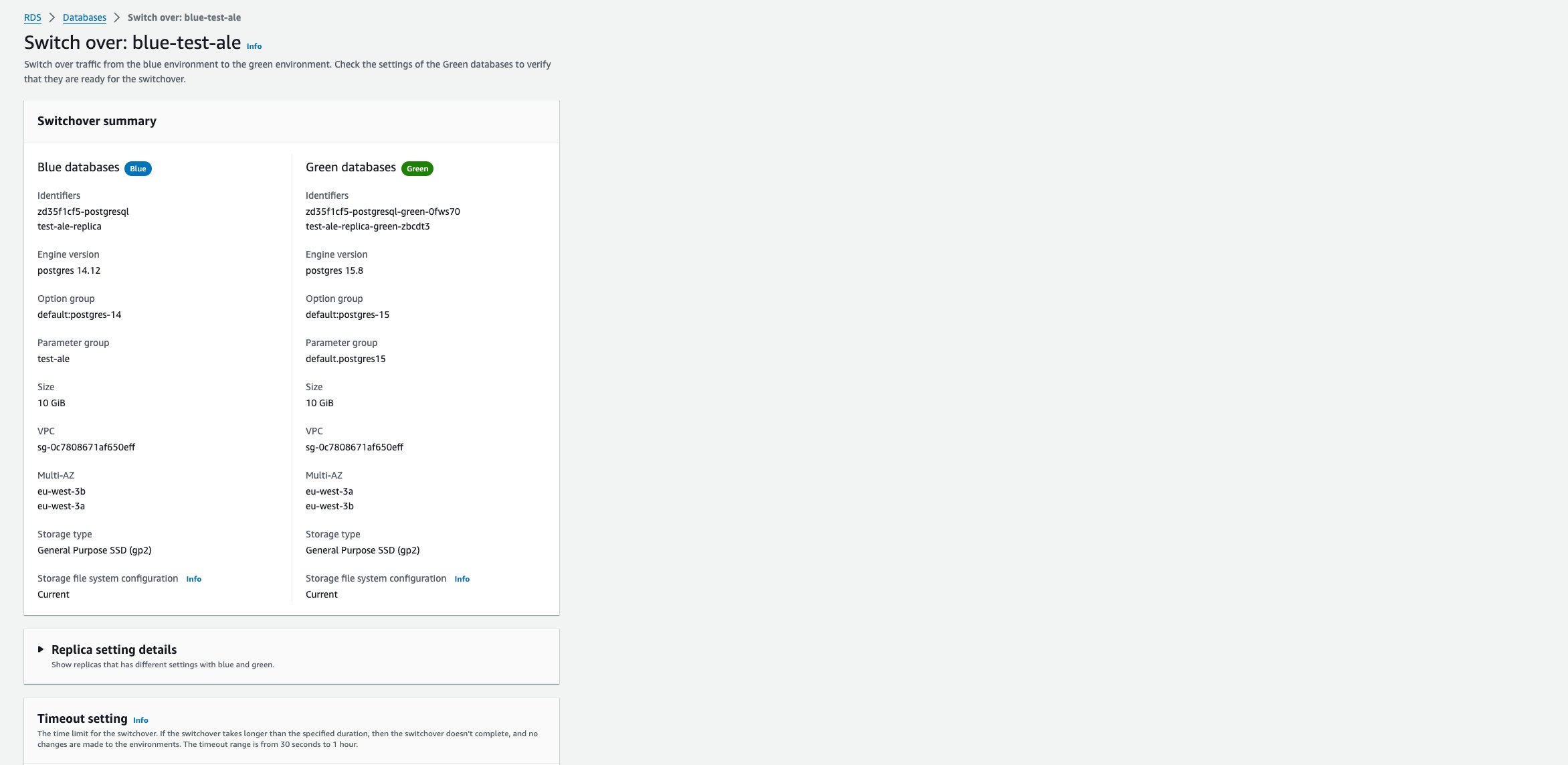 4. Wait for the switch over to be completed.
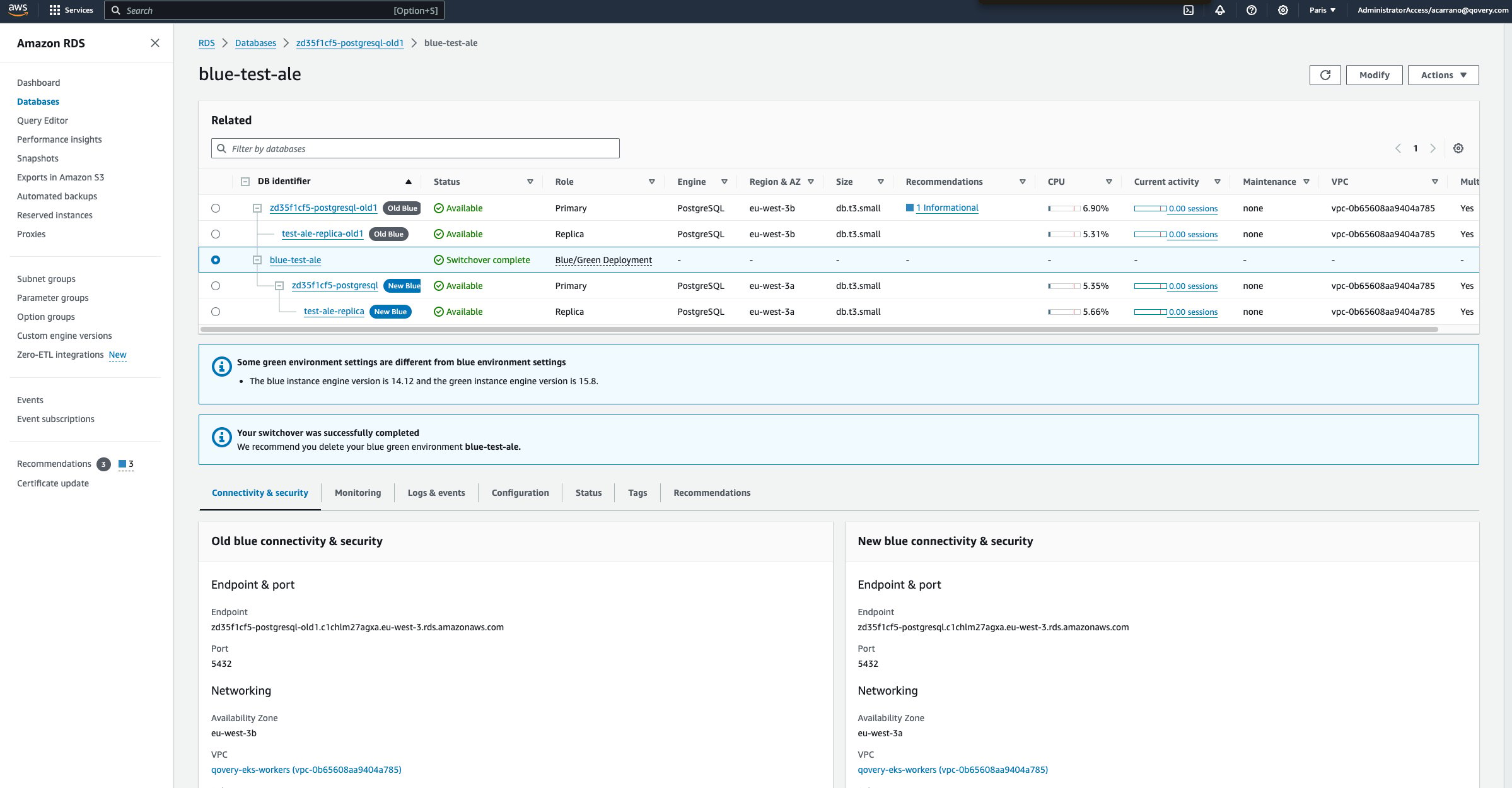 ### Delete the blue/green deployment
1. From the Database list on the AWS console, select the Blue/Green deployment `blue-green-upgrade`
2. From the action list, select "Delete"
3. Once completed, from the Database list on the AWS console, select the database in version 14 (note it should be renamed with a suffix `old`)
4. From the action list, select "Delete"
5. Wait for the delete operation to be completed before moving to the next step
Do not update the version in the Qovery console until the `old` instance has actually been deleted on AWS. Qovery manages your DB parameter group through Terraform, and switching the version triggers Terraform to replace the old parameter group (targeting the previous engine family, e.g. `postgres14`/`mysql8.0`) with a new one (e.g. `postgres15`/`mysql8.4`). AWS refuses to delete a parameter group that still has an instance attached to it — and the `old` instance is still attached to it. If you re-deploy from Qovery while the `old` instance still exists, the deployment will fail with a `TERRAFORM_UNKNOWN_ERROR` and no RDS event will be emitted, since the failure happens at the Terraform plan/apply stage before any AWS API call is made against the instance. If this happens, delete the `old` instance first, then re-deploy from Qovery again.
## Align the configuration on Qovery
1. Go on the Qovery console and align the database configuration by setting the version to `15`
### Delete the blue/green deployment
1. From the Database list on the AWS console, select the Blue/Green deployment `blue-green-upgrade`
2. From the action list, select "Delete"
3. Once completed, from the Database list on the AWS console, select the database in version 14 (note it should be renamed with a suffix `old`)
4. From the action list, select "Delete"
5. Wait for the delete operation to be completed before moving to the next step
Do not update the version in the Qovery console until the `old` instance has actually been deleted on AWS. Qovery manages your DB parameter group through Terraform, and switching the version triggers Terraform to replace the old parameter group (targeting the previous engine family, e.g. `postgres14`/`mysql8.0`) with a new one (e.g. `postgres15`/`mysql8.4`). AWS refuses to delete a parameter group that still has an instance attached to it — and the `old` instance is still attached to it. If you re-deploy from Qovery while the `old` instance still exists, the deployment will fail with a `TERRAFORM_UNKNOWN_ERROR` and no RDS event will be emitted, since the failure happens at the Terraform plan/apply stage before any AWS API call is made against the instance. If this happens, delete the `old` instance first, then re-deploy from Qovery again.
## Align the configuration on Qovery
1. Go on the Qovery console and align the database configuration by setting the version to `15`
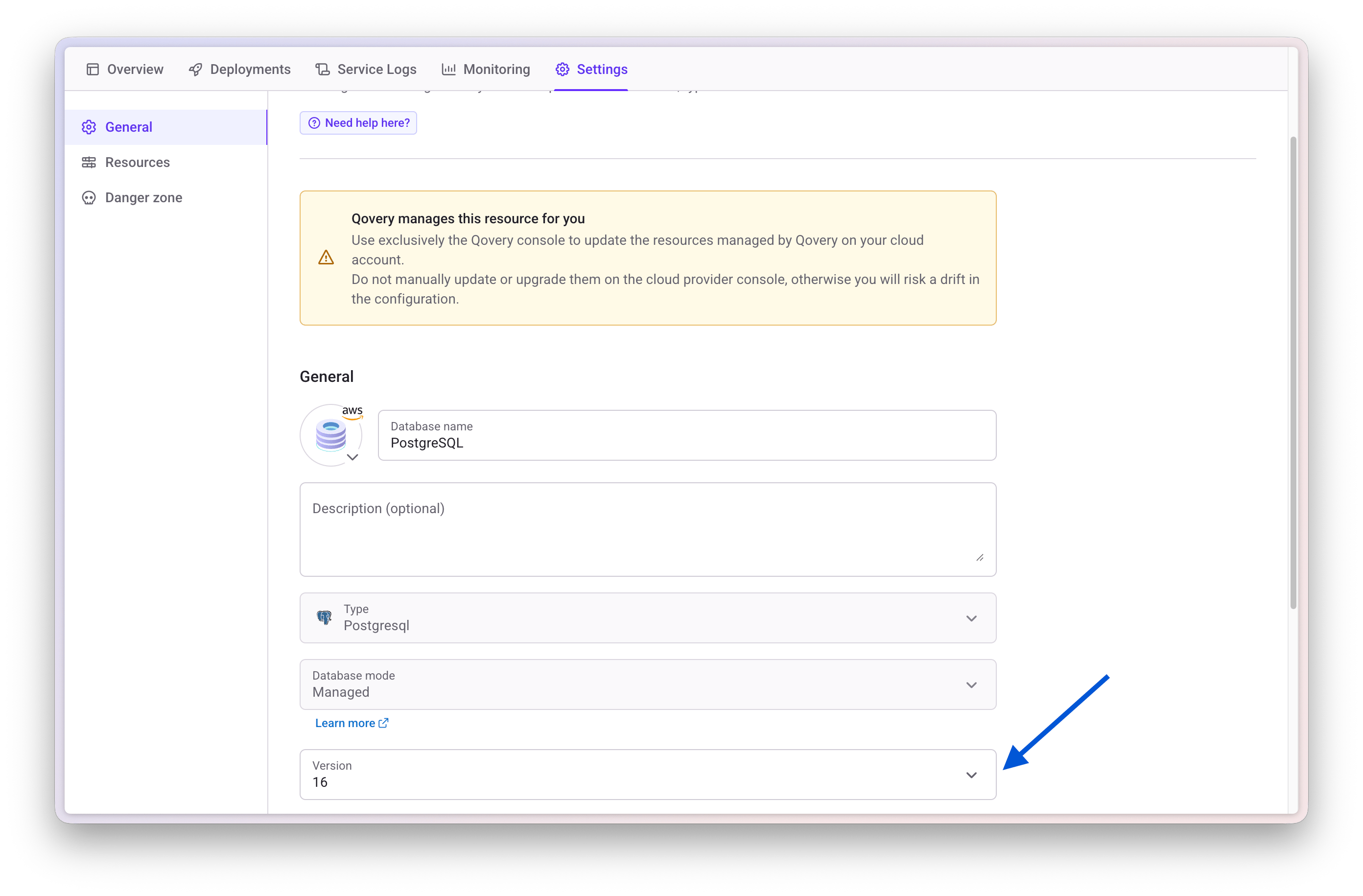 2. Re-deploy your database.
After the deployment completes, check the parameter group's apply status on AWS (`ParameterApplyStatus`). It can be reported as `pending-reboot`, meaning the new parameter group is attached, but the engine is still running with the previous group's values until the instance is rebooted. This is a silent failure mode: nothing breaks immediately, but any custom parameter you rely on (e.g. `log_bin_trust_function_creators` on MySQL) is not actually active yet, and the failure only surfaces later, for example `CREATE FUNCTION`/`CREATE TRIGGER` failing with `ERROR 1419` the next time a routine or trigger is created, possibly weeks after the migration. If the status is `pending-reboot`, reboot the instance from the AWS console to apply the new parameter values immediately.
2. Re-deploy your database.
After the deployment completes, check the parameter group's apply status on AWS (`ParameterApplyStatus`). It can be reported as `pending-reboot`, meaning the new parameter group is attached, but the engine is still running with the previous group's values until the instance is rebooted. This is a silent failure mode: nothing breaks immediately, but any custom parameter you rely on (e.g. `log_bin_trust_function_creators` on MySQL) is not actually active yet, and the failure only surfaces later, for example `CREATE FUNCTION`/`CREATE TRIGGER` failing with `ERROR 1419` the next time a routine or trigger is created, possibly weeks after the migration. If the status is `pending-reboot`, reboot the instance from the AWS console to apply the new parameter values immediately.