> ## Documentation Index
> Fetch the complete documentation index at: https://qovery-feat-qov-2094-ecr-pull-through-cache-doc.mintlify.site/llms.txt
> Use this file to discover all available pages before exploring further.
# API Token
> Manage API tokens for programmatic access to your organization
An API Token is used by third-party applications or scripts to access to your organization via the Qovery API (CI/CD, Terraform, Pulumi, etc.).
You can manage API tokens attached to your organization directly from the Qovery Console or using the [Qovery CLI](/cli/commands/token).
Qovery offers a second kind of token. An **API Token** carries a
[role](/configuration/organization/members-rbac) and is the right choice for
CI/CD, Terraform and scripts. An
[**API Policy Token**](/configuration/organization/api-policy-token) carries no
role but a policy evaluated on every request, and is meant for autonomous
agents that need a narrower footprint than any role can express.
## Accessing API Tokens
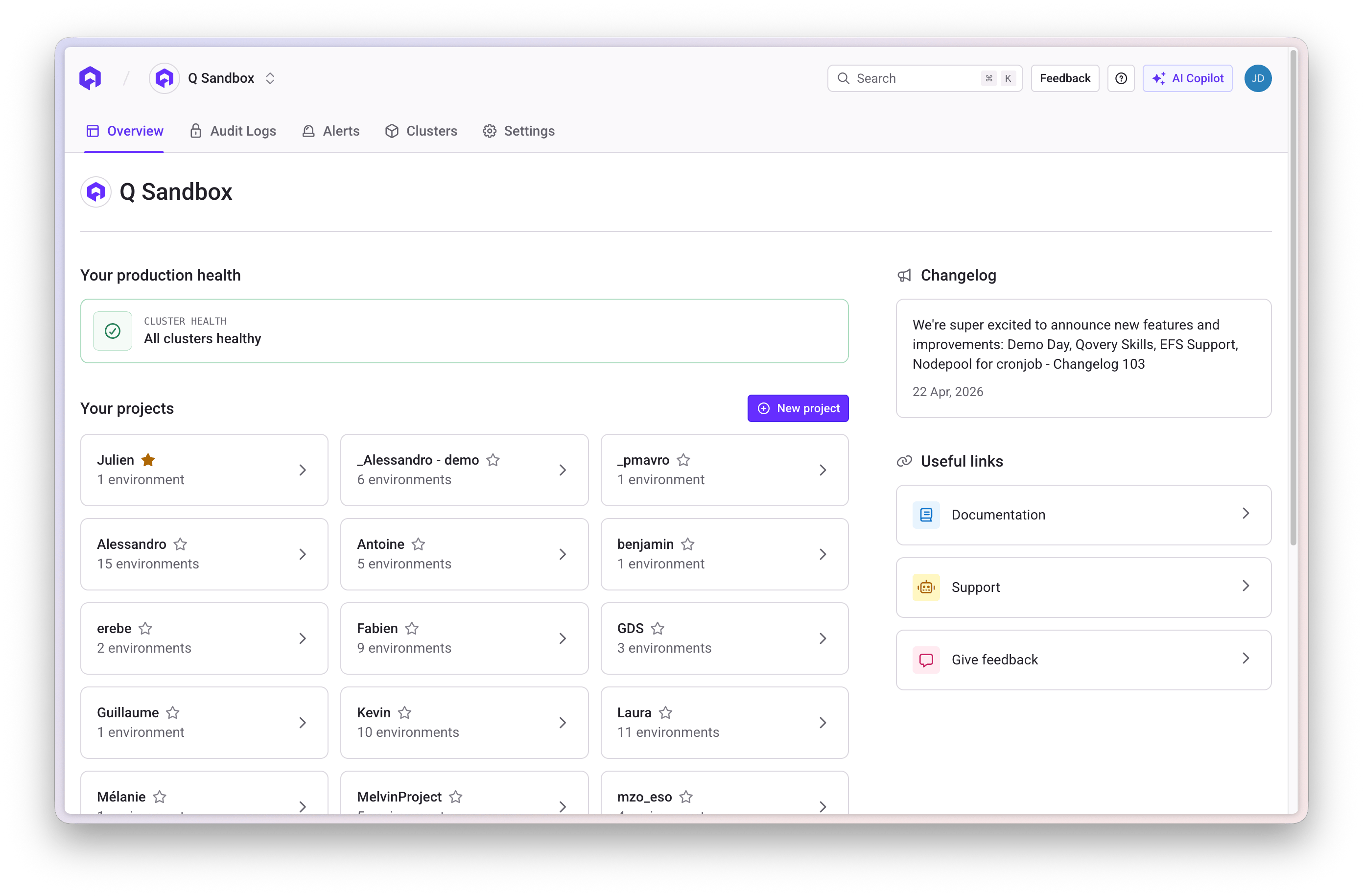
Click the Settings tab while you are on your organization overview.
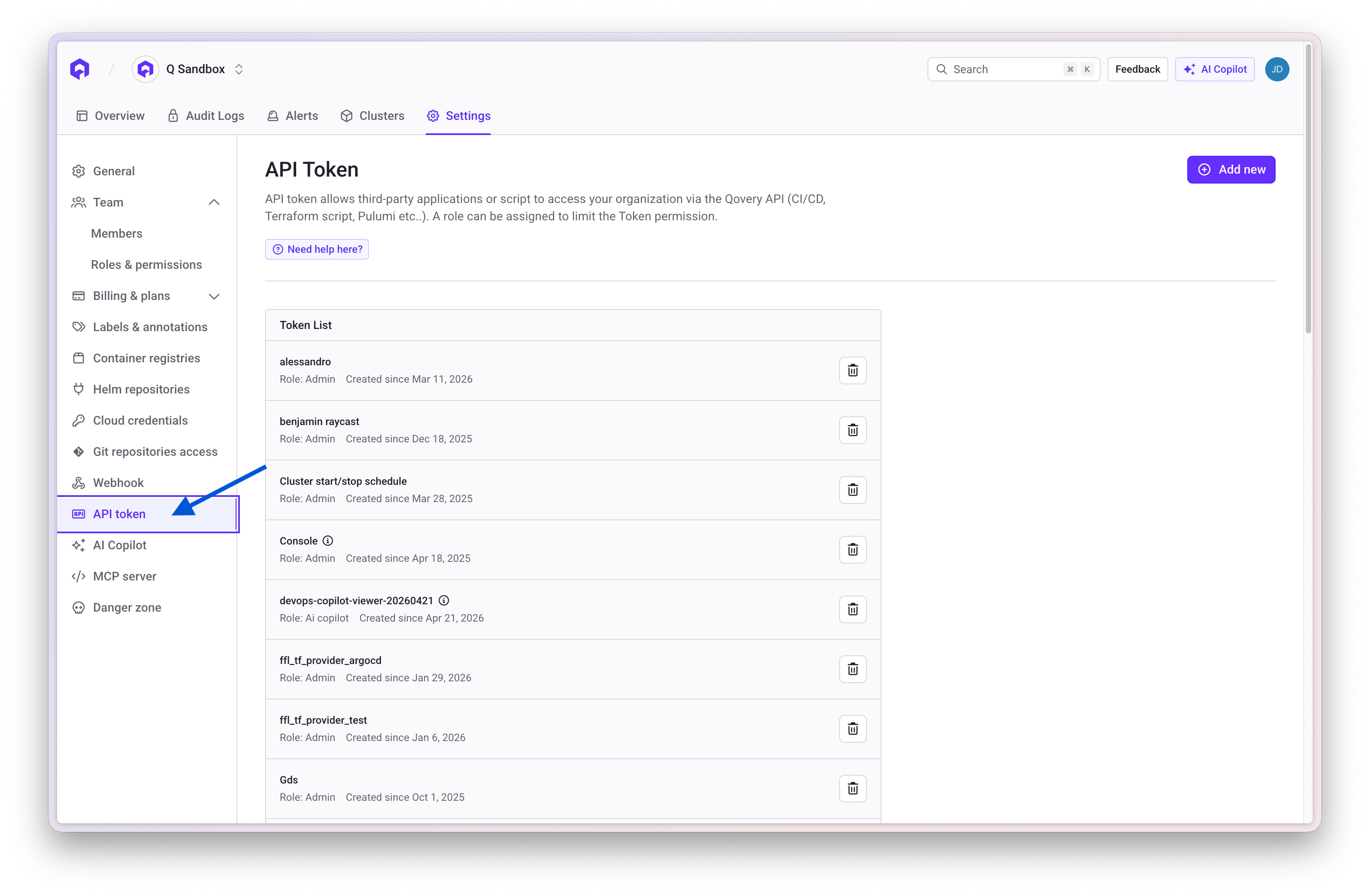
 Open the **Token API** section within the organization settings
 ## Create a New Token
Press the **Add new** button to create a new API token
Provide the following information: - **Name**: A descriptive name for the
token - **Description**: Purpose or usage details - **Role**: Select a role
managed via the [Qovery RBAC system](/configuration/organization/members-rbac)
After creation, the token will be displayed once
**Important**: Make sure you safely store the token returned by the UI. You
won't be able to retrieve it again (you will have to create a new one).
## Delete a Token
To remove an API token:
1. Locate the token in the Token API list
2. Click the **delete icon** (trash icon) next to the token
3. Confirm the deletion
## Edit a Token
This functionality is not yet available. To modify a token, you'll need to
delete the existing one and create a new token.
## Create a New Token
Press the **Add new** button to create a new API token
Provide the following information: - **Name**: A descriptive name for the
token - **Description**: Purpose or usage details - **Role**: Select a role
managed via the [Qovery RBAC system](/configuration/organization/members-rbac)
After creation, the token will be displayed once
**Important**: Make sure you safely store the token returned by the UI. You
won't be able to retrieve it again (you will have to create a new one).
## Delete a Token
To remove an API token:
1. Locate the token in the Token API list
2. Click the **delete icon** (trash icon) next to the token
3. Confirm the deletion
## Edit a Token
This functionality is not yet available. To modify a token, you'll need to
delete the existing one and create a new token.